Remote Synchronized Movie Watching With Alist/Openlist/Rclone + Syncplay
 Nite included in Tutorials
Remote movie nights usually fail on playback sync, not voice chat. Counting down over voice works for a while, but someone is often a few seconds ahead or behind. Screen sharing works too, but quality and audio sync are often poor.
This setup uses Alist/Openlist/Rclone to provide an HTTP video link, then uses Syncplay to synchronize playback. Everyone watches the same source with a local player, so the video is not compressed by screen sharing.
🎯 Core Concept: Store video resources in cloud storage ➡️ Use tools to generate direct HTTP links from cloud files ➡️ Use synchronized playback software to play these links.
1. Get and store video resources
Start with video files. Here the library is your cloud storage, and there are two common ways to fill it.
Method 1: 🧲 Magnet Links + Offline Download Cloud Storage
This works well when you already have magnet links. You need cloud storage that supports offline downloads.
- 🔎 Finding Resources: Visit some magnet link movie sites to find the movies or series you want, and copy their magnet links (magnet:?xt=…).
- ☁️ Offline Download:
- PikPak ⚡️: Excellent support for magnet links and BT tasks, fast offline speeds, many resources can be “instantly saved.” It’s essentially a powerful resource library itself.
- 115 Cloud 👑: A long-running offline download service. Popular resources usually finish quickly.
- Other Cloud Storage
Method 2: Cloud Storage Resource Sharing Links
This is the simplest method. Many forums, Telegram channels, or friends directly share packaged video resources.
- Finding Sharing Links: Find Alibaba Cloud, Quark Cloud, and other links shared by others.
- 📥 Save to Your Cloud: Open the link and “save to my cloud storage.” This way, resources enter your personal library.
Now the library is ready.
2. Turn cloud files into HTTP links
Syncplay cannot read cloud storage directly. It needs a standard HTTP video link that players can open, such as http://your.server.ip:port/Movie.mkv. This step exposes the cloud file as an HTTP link.
The usual options are Alist/Openlist and Rclone.
I. Alist/Openlist (common for Chinese cloud storage)
Alist/Openlist is a directory file listing program that supports multiple storage types, with solid support for Chinese cloud storage (Alibaba Cloud, Quark, Tianyi Cloud, etc.).
- 🖥️ Deployment: You can deploy on your computer, NAS, Raspberry Pi, or a cheap cloud server (VPS).
- 💾 Mount Cloud Storage: In the Alist/Openlist management interface, add and mount your Alibaba Cloud, PikPak, etc., following the prompts.
- 🔗 Get Links: After starting the Alist/Openlist service, you can access a cloud storage-like page at
http://<your IP address>:5244. Find the video file you want to watch, right-click “download” or “copy direct link” to get the HTTP link we need.
🔑 Key Point: The device running Alist needs a public IP, or expose the service to the public network through intranet penetration technologies (like frp, ngrok) so distant friends can access the link.
II. Rclone (good for international cloud storage)
Rclone is a cloud storage command-line management tool. It supports Google Drive, Dropbox, OneDrive, and other international cloud storage services well.
-
⚙️ Configure Rclone: Install Rclone on your computer or server, then use the command line
rclone configguide to interactively configure your cloud storage (Rclone calls it a “remote”). -
🚀 Start HTTP Service: Use the following command to start a simple HTTP server:
rclone serve http your_remote_name:path/to/videosyour_remote_nameis the cloud storage name you configured in the previous step.
-
🔗 Get Links: After the service starts, you can access videos at
http://<your IP address>:8080/Movie.mkv.
You can let friends access your deployed Rclone through a public IP, or run Rclone independently on friends’ devices, as long as everyone can get videos through the same URL.
3. Use Syncplay for synchronized playback
After the video link is ready, use Syncplay to synchronize playback.
-
📥 Install Software: Everyone participating in the viewing needs to download and install Syncplay. Also, it’s recommended to install a high-performance local player like MPV (highly recommended) or VLC. Syncplay will automatically call these players.
-
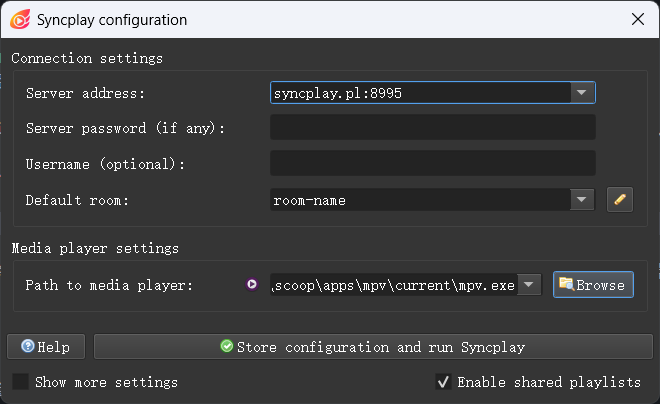
🛠️ Configure Syncplay:
- Open Syncplay and you’ll see a connection settings window.
- Server Address: Can be left blank to use the official public server, or enter a public server address you all know (e.g.,
syncplay.pl:8999). - Username: Choose a name you like.
- Room Name: Everyone must enter the exact same room name - this is your ticket to enter the same “virtual cinema.”
- Player Path: Specify the path to your installed MPV or VLC
exefile.
-
▶️ Start Synchronized Viewing:
- After everyone enters the same room, you’ll see a chat window and user list.
- One person (usually the host) copies the video HTTP link obtained in step two.
- Open your player (e.g., MPV), drag the link into it, or play it via “Open URL.”
- Syncplay starts syncing: When you start playing, Syncplay detects the media and automatically syncs this link information to others in the room. Others’ players will automatically load and play the same link.
- Now, when anyone pauses, plays, fast-forwards, or rewinds, everyone’s player will instantly perform the same operation. The delay is much smaller than manual syncing.
At this point, the synchronized viewing setup is ready.
4. When this setup makes sense
The first setup takes a bit of work, but it is more stable than screen sharing or manual countdowns. The main advantages are below.
-
🖼️ Native Picture and Audio Quality Whatever resolution you get from cloud storage (1080p, 4K, HDR), that’s what you see. There is no secondary compression from screen sharing, and the audio track comes from the original file.
-
⏱️ Millisecond-Level Precise Synchronization Syncplay’s core is synchronization. It coordinates everyone’s playback progress through the server, ensuring your pauses, plays, and timeline jumps are accurate to the millisecond. This means everyone sees the same frame and hears the same line at the same time.
-
👍 Host-Bandwidth Friendly This part matters. In screen sharing solutions, the “host” needs to simultaneously upload high-definition video streams, requiring extremely high upstream bandwidth. With this setup, the Alist/Rclone server only provides a text link, and the actual video traffic is pulled directly from cloud storage servers (like Alibaba Cloud, PikPak) by each viewer’s device. The host’s bandwidth has almost no pressure.
-
📚 Unlimited Resource Library You are not limited to one video platform. Any video you can find and store in cloud storage can become the source.
-
💻🐧🍎 Cross-Platform, Highly Compatible The core tools in this setup (Rclone, Alist, Syncplay, MPV) support Windows, macOS, and Linux. Friends on different systems can join.
-
💸 Low Cost, High Freedom Apart from possible cloud storage membership or a cheap VPS, the core software is free and open source.